Google Calendar
Keep scheduling in sync between Kalumma and Google Calendar
Media
Description
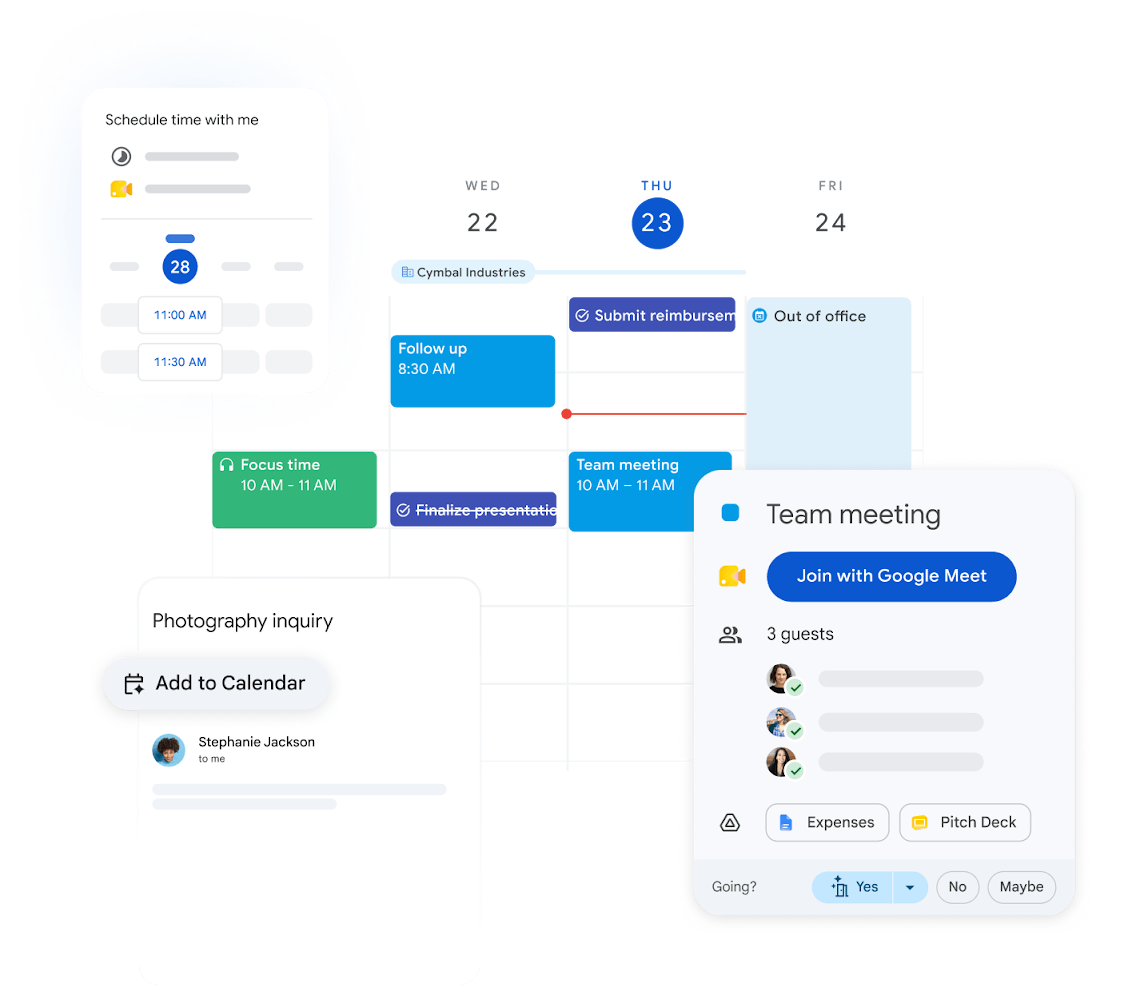
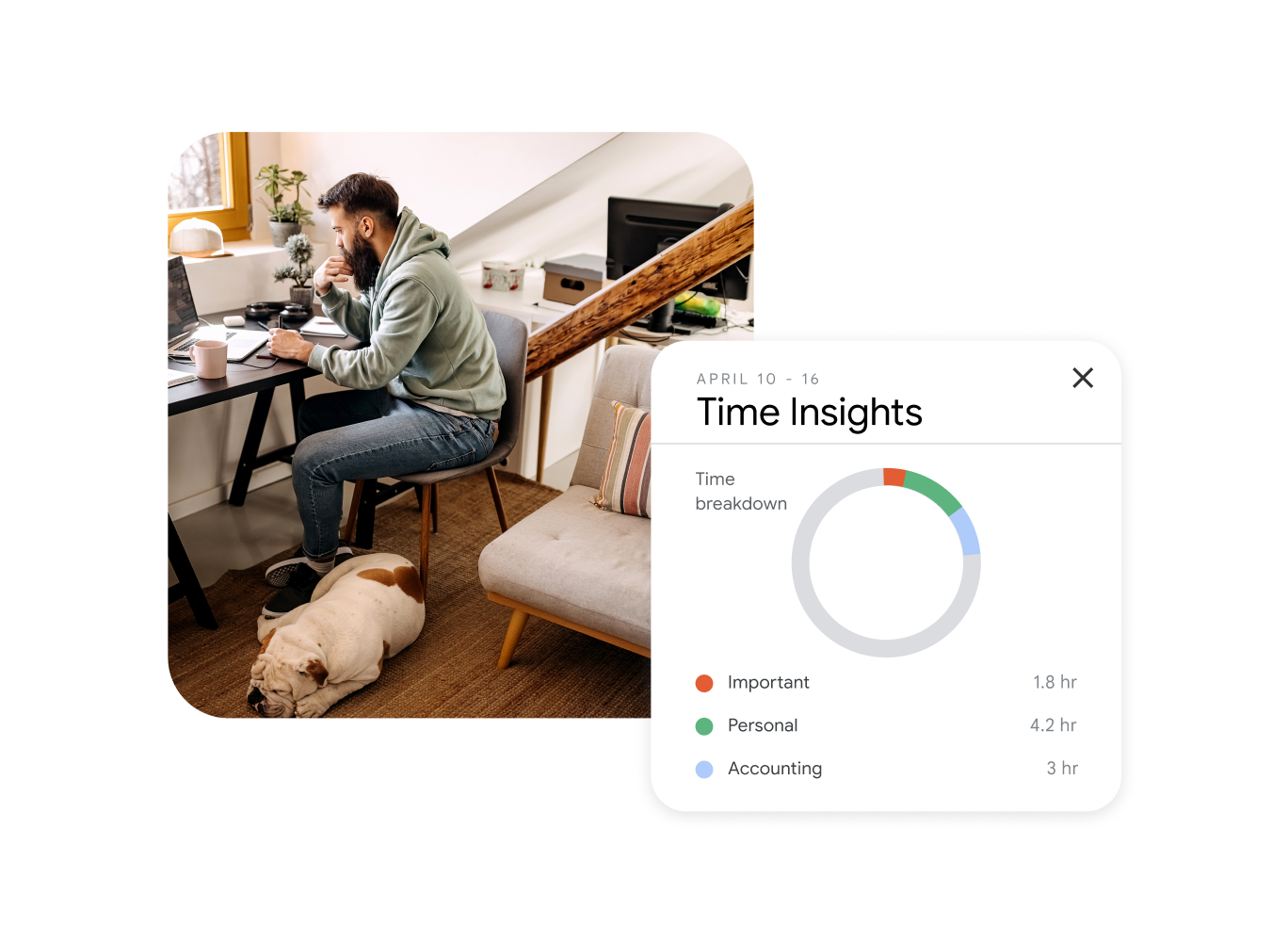
Connect Google Calendar to Kalumma to keep meetings, availability, and event details consistent across both systems. Once connected, calendar events created or updated in either place stay aligned, so your team plans against a single, current view of the schedule. The integration supports real-time sync, and gives technical teams REST and CalDAV access for building tailored scheduling flows. Setup is guided by step-by-step documentation, so most teams can connect and configure without engineering involvement.
Benefits
Fewer double-bookings
A single synced view of availability means fewer scheduling collisions and less time spent confirming who's free.

Less manual coordination
Stop copying events between tools. Changes propagate on their own, so your team spends less time keeping calendars aligned.
Flexible for technical teams
API access means the integration adapts to your workflows instead of forcing your team to adapt to it.
Testimonials
"Since connecting our calendars, we spend far less time confirming availability back and forth. The two-way sync just keeps everything lined up."

Operations lead
Mid-market SaaS company
"Being able to choose which calendars sync, and in which direction, made the rollout straightforward. The API access gave our team room to customize later."

IT administrator
Professional services firm
Features
Real-time sync
Events created or changed in either system update in the other automatically, so schedules stay current across devices.
Two-way calendar mapping
Choose which calendars sync and in which direction, so shared team calendars and personal ones stay separated the way you want.
REST and CalDAV API access
Read and write calendar data programmatically to build custom scheduling flows and connect Google Calendar to the rest of your stack.
How it Works
When you connect Google Calendar, Kalumma establishes a secure link to your Google Workspace account and begins syncing calendar events in both directions. New events, updates, and cancellations flow between the two systems so schedules stay aligned without manual copying. Behind the scenes, the integration uses Google's REST and CalDAV APIs, which means teams that want more control can script custom behavior — for example, automatically creating calendar holds from Kalumma records, or reflecting external bookings back into Kalumma. Day to day, the result is fewer double-bookings, less back-and-forth confirming availability, and a schedule your whole team can trust. Configuration is handled through a guided setup flow with documentation at each step, so you can connect, map your calendars, and choose sync preferences without writing code.
Integration Diagrams
Data
Event
Event
Availability
Availability
Booking
Booking
Data
Calendar Event
Calendar Event
Free/busy
Free/busy
Calendar event
Calendar event
FAQ
Yes. Events created or updated in Kalumma or in Google Calendar are reflected in the other, based on the sync preferences you set during configuration.
No. Setup is handled through a guided flow with step-by-step documentation. Most teams can connect and configure without engineering help. API access is available for teams that want to build custom flows.
You choose which calendars to include and in which direction during setup, so shared team calendars and personal calendars stay separated the way you prefer.
The integration supports real-time sync, so changes typically appear in the other system without manual refreshing.
Yes. You select which calendars sync and can limit direction (one-way or two-way) per calendar, so only the data you intend to share moves between systems.